TL;DR
- Your employer cannot casually browse your files, but they can access documents in your work account when needed for legal, compliance, or security reasons.
- OneDrive for Business is private only until you share something or until an admin needs to access your files for a legitimate reason.
- Files in SharePoint and Teams are shared by design and visible to anyone with access to the site or team.
- IT administrators can see activity logs and can grant themselves access to files if required, and their actions are logged. -Who can see your files depends on where you store them and your sharing settings, not on hidden spying features.
Many employees wonder whether their employer can see the documents they store in Microsoft 365. The answer is not always simple, because it depends on where you save your files, how you share them, and what your company’s policies allow. This guide explains what is private, what is shared, and what administrators can access so you can understand how document visibility works and how to stay in control.
For IT administrators
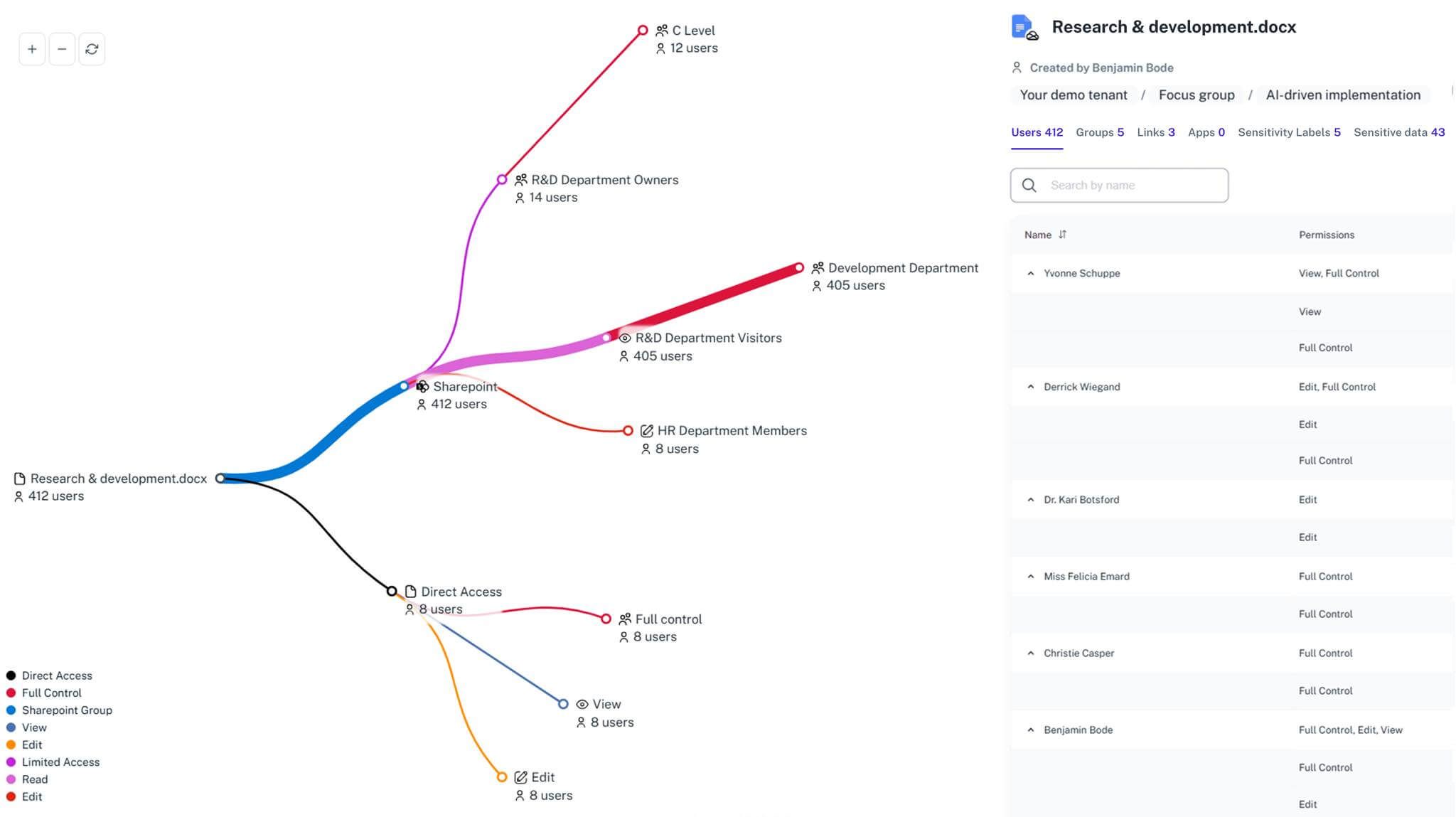
Understanding who can access employee files in Microsoft 365 isn’t simple. Native tools require jumping between admin centers, audit logs, and PowerShell. 1Security gives security teams a clear, auditable view of file access across OneDrive, SharePoint, and Teams — without violating employee privacy.
→ See how Microsoft 365 visibility works with 1Security
What this article covers
This article explains:
- how OneDrive, SharePoint, and Teams handle file visibility
- who can see your documents and why
- how sharing options and permissions work
- what IT administrators can access
- what employers can and cannot monitor
- how tools like Copilot use your data
- how to protect your privacy in Microsoft 365
How Office 365 stores your documents
OneDrive for Business
Your OneDrive for Business is private when you start using it. Only you can see the files until you choose to share them. Documents become visible to others if you:
- share them directly
- add them in shared folders
- share using a link
- store them in a location that belongs to a team or site
Although private by default, OneDrive for Business belongs to your organization, and administrators can access it for legitimate reasons.
SharePoint and Microsoft Teams
Files uploaded to SharePoint or Teams are shared by default. Anyone who has access to the site, team, or channel can see the documents stored there. This includes managers, colleagues, or anyone in the group.
Permissions drive visibility
Microsoft 365 follows a simple rule: “If someone has permission, they can see the file.” This applies to regular users, groups, guests, and administrators with elevated roles. Permissions are based on:
- sharing choices
- team or site membership
- links with different levels of access
- admin roles and policies
Clear answers to the most common privacy questions in Microsoft 365
These are common questions that employees search for when they want clarity about privacy at work.
1. Who can see my documents on Microsoft 365
Your documents can be seen by:
- you
- people you share the file with
- people in your organization if you choose the option “People in your organization”
- anyone with the link if you use “Anyone with the link”
- Microsoft 365 administrators if needed for compliance, support, or legal purposes
Sharing settings determine visibility more than anything else.
2. Can my employer see my Office 365 documents
Yes, if the documents are stored in your work account. Your employer does not automatically browse your files, but admins can access OneDrive for Business, SharePoint, and Teams content when needed. This access is logged and follows company policy. Files stored in personal OneDrive or on your personal device are not visible to your employer.
3. Can my employer see what I do on Microsoft Office
Your employer can see activity inside the Microsoft 365 environment. This includes:
- files you open or edit
- sharing actions
- emails sent or received
- Teams messages, calls, and meeting participation
- login activity
They cannot see:
- personal browsing
- apps outside the Microsoft ecosystem
- personal device activity
- Monitoring supports security, productivity, and compliance.
4. Can my employer see my personal OneDrive files
No. Personal OneDrive accounts are completely separate from OneDrive for Business. Your employer cannot access personal Microsoft accounts.
5. Can my boss see my emails in Office 365
Yes, with limitations. Emails in your work account belong to the employer and can be accessed during:
- legal cases
- compliance audits
- HR investigations
- security incidents
This access is controlled, monitored, and logged.
6. Can everyone see my files on Outlook
No. Outlook does not allow others to browse your files. Attachments and documents follow mailbox permissions. Unless you share your mailbox or a document stored in OneDrive or SharePoint, no one sees your Outlook files.
7. When your employer can access your files
Employers can access files in specific scenarios:
- security or data leak investigations
- legal discovery
- HR investigations
- compliance checks like ISO or GDPR
- recovering files when someone leaves the company
- technical troubleshooting
- restoring accidentally deleted files
Access is intentional, not automatic.

Common misconceptions about Office 365 privacy
Administrators can see everything without limits
Reality: Access is possible but must be justified, logged, and follows policy.
OneDrive for Business is fully private
Reality: It is private until shared, but the organization owns the data.
Teams files are only visible to people in a chat
Reality: Teams files live in SharePoint and follow SharePoint permissions.
Deleting a file removes all traces
Reality: Log data, versions, and retention policies may keep copies.
How organizations monitor access and activity
Organizations usually monitor:
- file access and sharing
- external sharing activity
- unusual downloads
- failed login attempts
- suspicious behavior
They do not monitor:
- personal browsing
- private device usage
- non Microsoft apps
The goal is security, not spying.
What about Microsoft Copilot
Copilot follows the same rules as users. It can only see:
- files the user has access to
- content in shared sites
- documents visible through permissions
Copilot does not bypass security. Oversharing creates AI privacy risks, not the AI itself.
How to keep your documents private
Practical steps:
- avoid using “Anyone with the link” unless necessary
- choose “Specific people” when sharing
- keep personal files outside OneDrive for Business
- review sharing settings regularly
- store sensitive files in secure, limited folders
- ask IT if you are unsure who can see a file
What employers typically do
Most employers:
- limit admin access to necessary staff
- use clear privacy and data rules
- log all admin actions
- avoid unnecessary access to employee files
- train staff on responsible sharing
Companies gain nothing by casually browsing documents. Access is procedural, monitored, and controlled.
How organizations actually get visibility into Microsoft 365
Understanding permissions is one thing. Seeing them across thousands of files, sites, Teams, and users is another.
In practice, most organizations struggle to answer simple questions like:
- Who can see this file?
- Why does this guest still have access?
- What will Copilot surface to users?
This is where platforms like 1Security are used.
Instead of relying on manual checks across SharePoint, Teams, and Entra ID, organizations use a unified view of permissions, sharing, and sensitive data to understand real exposure and prove control during audits.
Conclusion
Your employer cannot casually look through your Office 365 documents, but they can access files in your work account when it is necessary for security, compliance, or legal reasons. Visibility depends on where your files are stored, how you share them, and the rules your organization follows. If you understand how OneDrive, SharePoint, and Teams handle permissions, you can manage privacy confidently and avoid unintentional exposure.
If your company uses Copilot, remember that AI only sees what you see. Good sharing habits are the simplest and most effective way to protect your privacy in Microsoft 365.