Somewhere in your tenant is an application that reads mail.
Nobody in security chose it. An employee found a tool that summarised their inbox, or scheduled meetings, or turned email into tasks, and clicked through a permission dialog because the dialog stood between them and the thing they wanted. That was two years ago. The employee has changed teams. The tool has changed hands. The grant is still active.
This post is about finding grants like that one, all of them, and deciding what to do about each. It's a practical audit, but two of the steps have traps in them that most published guidance walks straight into, so it's worth reading even if you've run this exercise before.
Why this is the audit worth running in 2026
An OAuth consent has properties that make it the most durable form of access in a modern tenant, and almost none of them are visible at the moment it's created.
It doesn't expire. There's no renewal, no annual re-consent, no prompt after a period of disuse. The grant persists until somebody actively revokes it, and nothing anywhere generates a reminder that it exists.
It survives everything you do during an incident. A consented application holds its own tokens and acts on its own schedule. It keeps working after a password reset, after session revocation, and in the delegated case it can keep working after the user who consented has left the company. If your incident process ends at disabling the account, an application granted during the compromise is still running a fortnight later, and by then it looks like ordinary configuration.
It defeats MFA by arriving after it. Consent phishing sends the victim a genuine Microsoft consent URL, on the genuine domain, with a valid certificate. The user authenticates properly, multi-factor and all, and then authorises an application. There's no fake login page and no stolen password. MFA protects authentication, and this attack lives entirely downstream of it.
Add the AI wave on top. The tools employees connect themselves now increasingly want mail, files and chat as context, which means the average uninvited application asks for considerably more than it did three years ago.
Step one: build the list, and don't trust the obvious method
The first honest inventory question is embarrassing in most organisations: how many applications have a foothold in the tenant right now? The usual answer is a guess that's low by hundreds.
The starting point is Enterprise applications in the Entra admin center, and for a one-off review it's fine. The trap is in how that view, and most of the audit scripts circulating in blog posts and gists, decide what counts as an application. They filter service principals on a tag, WindowsAzureActiveDirectoryIntegratedApp, which is undocumented and was never designed to mean "everything with access to my data". Filter on it and Microsoft first-party service principals fall out of the result: Forms, Approvals, Lists and their siblings, along with other legitimately consented applications that never carried the tag. The script runs, produces a plausible-looking list, and undercounts. Nothing errors. You just audit a subset and believe it was the whole.
The reliable method is publisher-based: enumerate the service principals themselves and classify by publisher and by what's actually granted, rather than trusting a tag to pre-filter for you. It yields a longer list, which is the point. An inventory you'll cite to an auditor, or feed into a compliance requirement about third-party access, has to be built this way or it's a best effort wearing a spreadsheet.
While you're enumerating, capture the permission grants alongside each principal, both kinds: the delegated grants (oauth2PermissionGrants) and the application role assignments. The list without the grants is a phone book.
Step two: read each entry by channel, not by name
The most important attribute of an application isn't what it is. It's how it reaches your data, and there are more channels than the consent dialog suggests:
- Tenant-wide application permissions, granted by an admin. The app reads data for everyone, with no user present.
Mail.Readat this level is functionally a permanent read of every mailbox in the organisation, held by a third party. - Admin-consented delegated permissions. An admin approved the app to act on behalf of any user who signs in to it.
- A single user's consent. The shadow-IT channel, and the consent-phishing channel. Scoped to what that user can reach, which in an average tenant is a great deal.
- Licensing. Some access is implied by a product license rather than any consent event, which is why it never shows up when you only audit consents.
- An explicit, scoped grant to specific resources.
Record the channel for every row, and for anything admin-consented, record which admin consented and when. That second part sounds bureaucratic until the first time you need it: consents outlive the people who click them, and "why does this integration have directory read?" is unanswerable three staff generations later unless somebody wrote it down at grant time.
Within the grants, a handful of scopes carry most of the risk: Mail.Read and Mail.ReadWrite, Files.Read.All and its write twin, Directory.Read.All, and offline_access, which is the quiet one. It's what converts a session into a refresh token, which is what makes the access standing rather than momentary.
Step three: the cuts, in order of yield
A full review of four hundred applications doesn't happen. These cuts find most of the risk for a fraction of the effort, and they work in this order.
Tenant-wide application permissions. The shortest list and the highest stakes. Every entry should have a named owner and a written business reason, and the ones that don't are the exercise.
Mail, file or directory read at scale. The scopes above, on any channel. These are the grants that turn into data pipelines.
User consent plus an unverified publisher plus mail or file permissions. This triple is the exact shape of an illicit consent grant, because it's the exact shape attackers register. Worth knowing: publisher verification only confirms the publisher is who they claim. It says nothing about whether the app is well built or its backend secure, so a verified publisher isn't a pass, but an unverified one asking for mailbox access is always worth a look.
No activity in ninety days. Standing access with no use is the safest thing in security to remove, since by definition nothing depends on it. This cut also finds the tools whose internal champion left.
Consented to by users who have since left. Nobody connects those two facts. The person is offboarded, the grant persists.
Added during a specific window. The forensic cut, for when you're investigating a suspected compromise. What was consented to during the incident window, and does it still hold access? This is the artefact most commonly missed in containment.
Resist the instinct to sort by name and chase the unfamiliar entries. Attacker-registered applications use plausible names, and the largest legitimate integration in your tenant usually holds the broadest permissions of anything on the list, which earns it the most scrutiny rather than a waved hand. Sort by scope, then by activity.
Step four: revoke, and know what revoking doesn't do
Removing access has more than one lever, and they do different things. Revoking a permission grant removes the authorisation. Disabling the service principal stops sign-ins and token issuance for the app entirely. Deleting it removes the record too, which you may want to keep for forensics, so disable first.
Two honest caveats. Already-issued access tokens keep working until they expire, typically up to an hour, so revocation is fast but not instant. And nothing you revoke retrieves data the application already read. The grant controlled the pipe, and what flowed through it has flowed.
Then close the front door properly. Restricting user consent so employees can't grant third-party access without approval shuts the consent-phishing route almost entirely, but restriction without a path to yes just breeds shadow IT somewhere less visible. Pair it with the admin consent request workflow so a user can ask and get an answer in hours. And treat new tenant-wide grants as monitored security events rather than configuration changes, because a new one is among the highest-impact things that can happen in a tenant and by default it arrives with no alert at all.
The part a one-off audit can't give you
Everything above produces a snapshot, and the snapshot starts rotting the day you export it. New consents arrive weekly. Activity patterns shift. The dormant app of this quarter was the busy app of last quarter.
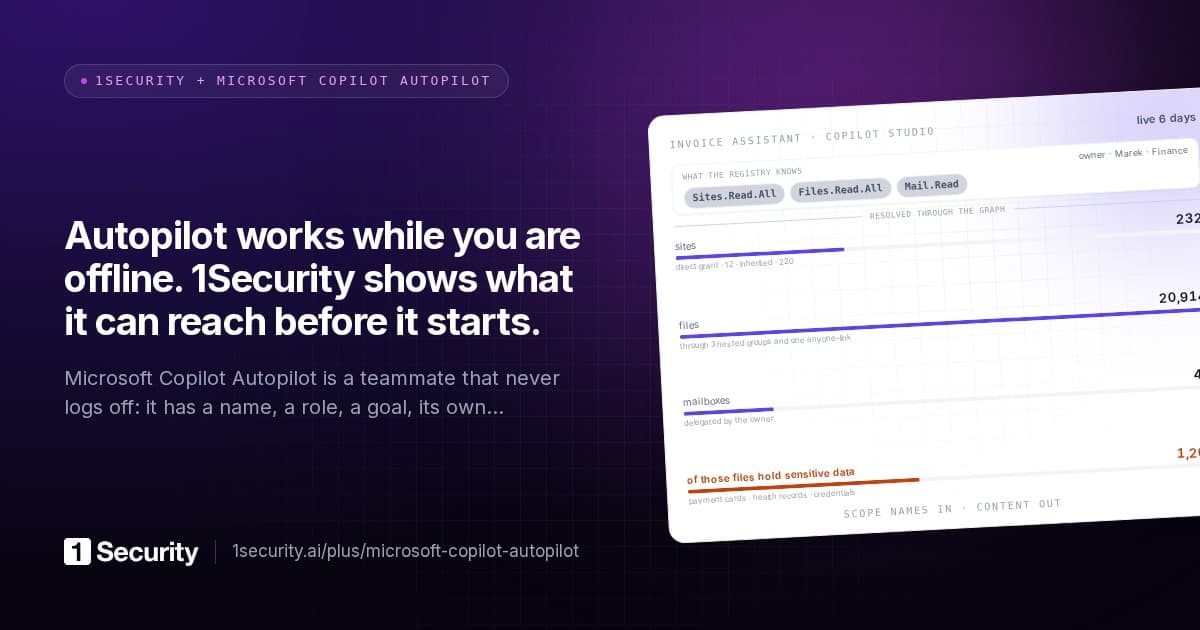
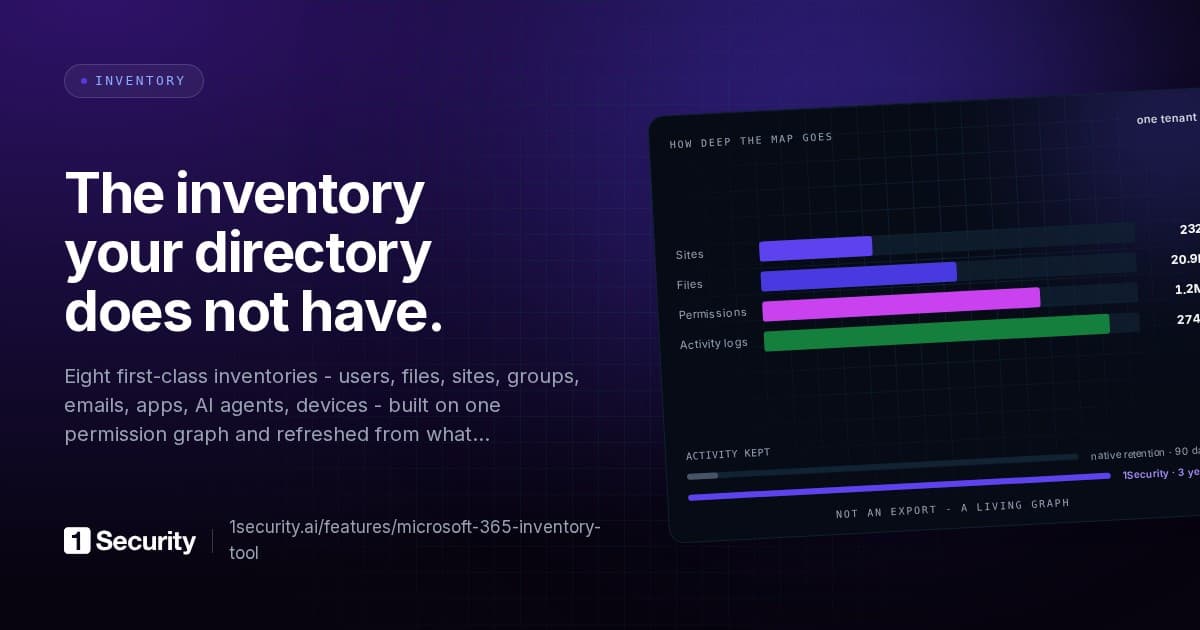
This is the job 1Security's Apps screen does continuously. Discovery is publisher-based, not tag-based, so the inventory includes what tag-filtered scripts miss, and a nightly sweep keeps every application's portrait current. Each app carries its access channel and the first admin who consented, so accountability survives staff turnover. Reach is quantified rather than implied: how many files, which users, what sensitive information sits inside what the app can touch, with an activity sparkline that separates the living from the abandoned. The risky combinations lift severity on their own - tenant-wide file access plus reach into sensitive data is treated as the toxic pair it is - and the reasons are printed in the notification mail. The OAuth-phishing triage above is a saved filter, not a quarterly project.
And on the remediation side, disabling an unused application is a suggested automation with a live count of what it matches, staged behind a review window. The write side is a separate, explicitly consented application, so the read-only product genuinely cannot change anything by itself.
Frequently asked questions
How many apps should I expect to find? Mid-sized tenants routinely carry several hundred service principals with some form of grant. If your inventory came back with thirty, suspect the method before celebrating the number.
Is revoking a grant risky? It breaks the application for its users, which is why dormancy is the safe place to start. Nothing unused for ninety days is load-bearing. For active applications, find the owner before touching anything.
Does MFA protect against consent phishing? No. The user authenticates legitimately, MFA included, and then authorises the application. The attack happens after authentication succeeds, which is exactly why it's popular.
Do admin-consented apps need review too? More than the rest. They hold the largest grants in the tenant, and "an administrator approved it once" isn't an owner, a reason, or a review. Each should have all three on record.